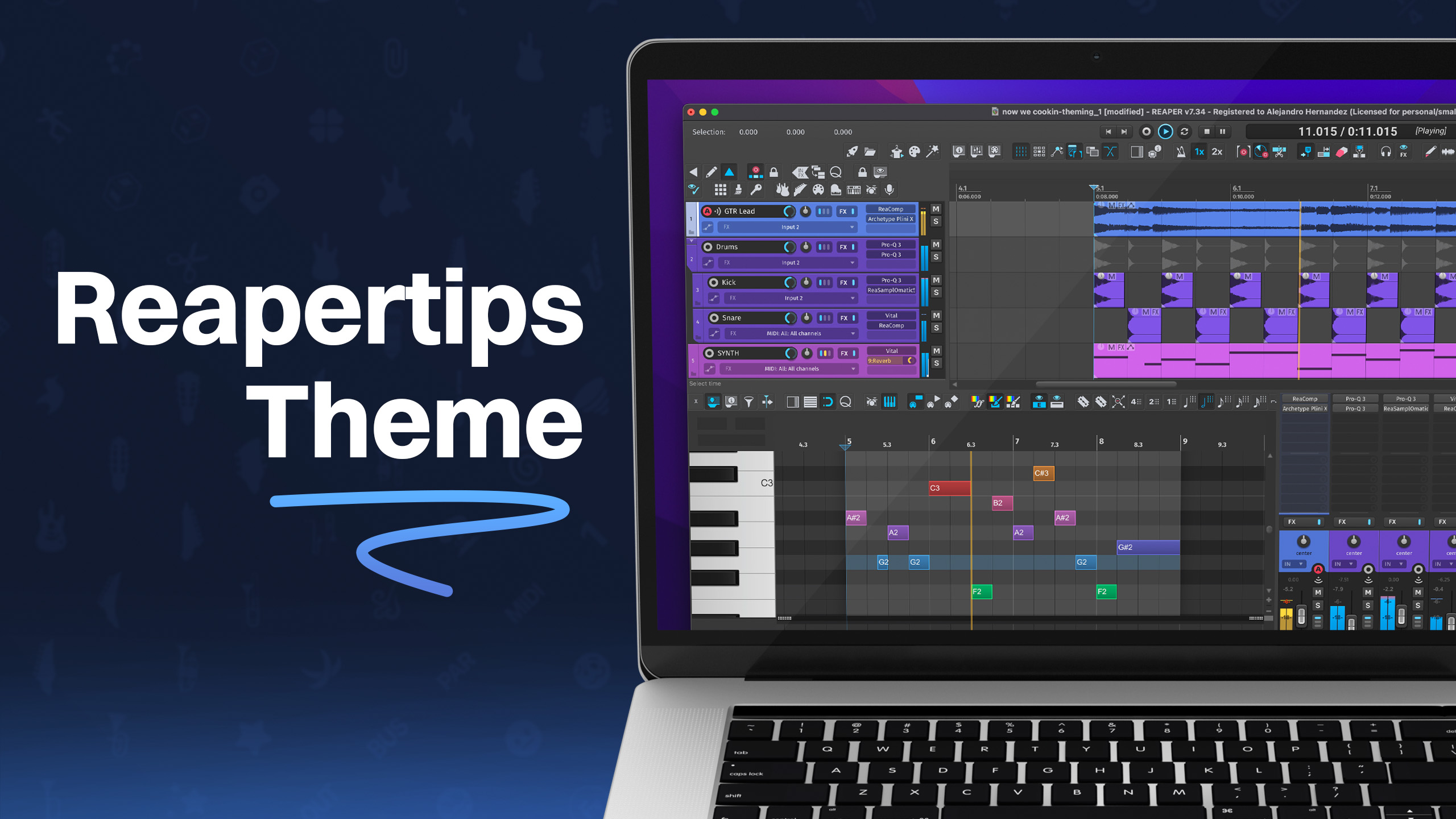
Hi REAPER friends! There’s an exciting new update with a bunch of really cool changes to regions and markers in REAPER. Today I want to explore those changes with you and share how I’m using them to keep my projects organized and very efficient to work with.
🚀 A faster way to draw regions
In REAPER, we usually click and drag to make a time selection and then hit Shift + R to create a region. But now there’s a new way to add them by drawing them.
To do this, you just hold ALT and then click and drag anywhere in the ruler to quickly create a bunch of regions. I find this waaaay easier!
⬜️ Customize your regions and ruler
One thing you will notice is that regions now have square edges. You can actually change this back to rounded edges by going to Preferences > Ruler/Grid and unchecking the option that says "Display regions with square edges."
I personally prefer the rounded edges because it makes it easier to see the divisions, but you can keep it however you want. There is also a new option to allow resizing the ruler small enough to hide all markers and regions, which is great if you're working on a tiny screen and need more space.
🫸 Moving and duplicating multiple sections
I love using regions for song structure stuff, like marking out a verse or a chorus. To quickly change the name or color, just Shift + Double Click the region to bring up the menu.
The best part is how helpful this is for arranging. If you want to repeat the chorus, just hold Ctrl (or Cmd on Mac) and drag the region to duplicate it. You can also move sections around just by dragging them.
A really cool new addition is that you can now select multiple regions or markers at the same time by holding Shift (or Ctrl to select non-adjacent ones), and then move or duplicate them all at once. This used to be a really annoying workaround, so I’m glad it’s finally built in!
📐 Using the Ruler Lane Manager
One of the coolest parts of this update is that you can now have multiple lanes in your ruler. If you right-click the ruler and go to Ruler display > Ruler lane manager, you can add as many lanes as you want.
You can give these lanes specific names, like "Song Structure" or "Fixes," and even set a color for the entire lane so all markers inside it match.
One crazy thing you can do is set the timebase for a specific lane. For example, if you have a 1-minute limit for a project, you can add a lane called "Limit," set the timebase to Time, and drop a marker at the one-minute mark. Now, even if you change the BPM of the song, that marker stays locked exactly at the one-minute mark while everything else shifts.
Auto-coloring with SWS
As a bonus, I use the SWS Extension to auto-color my regions. If you don’t have it yet, you should install it using these instructions.
If you go to Extensions > Auto Color/Icon/Layout, you can add a rule for "Region." For example, you can set the name "Bridge" to always be blue. Now, whenever you name a region "Bridge," it colors itself automatically.
That's it! I'm so glad we can now hide or organize markers to keep projects looking super clean.