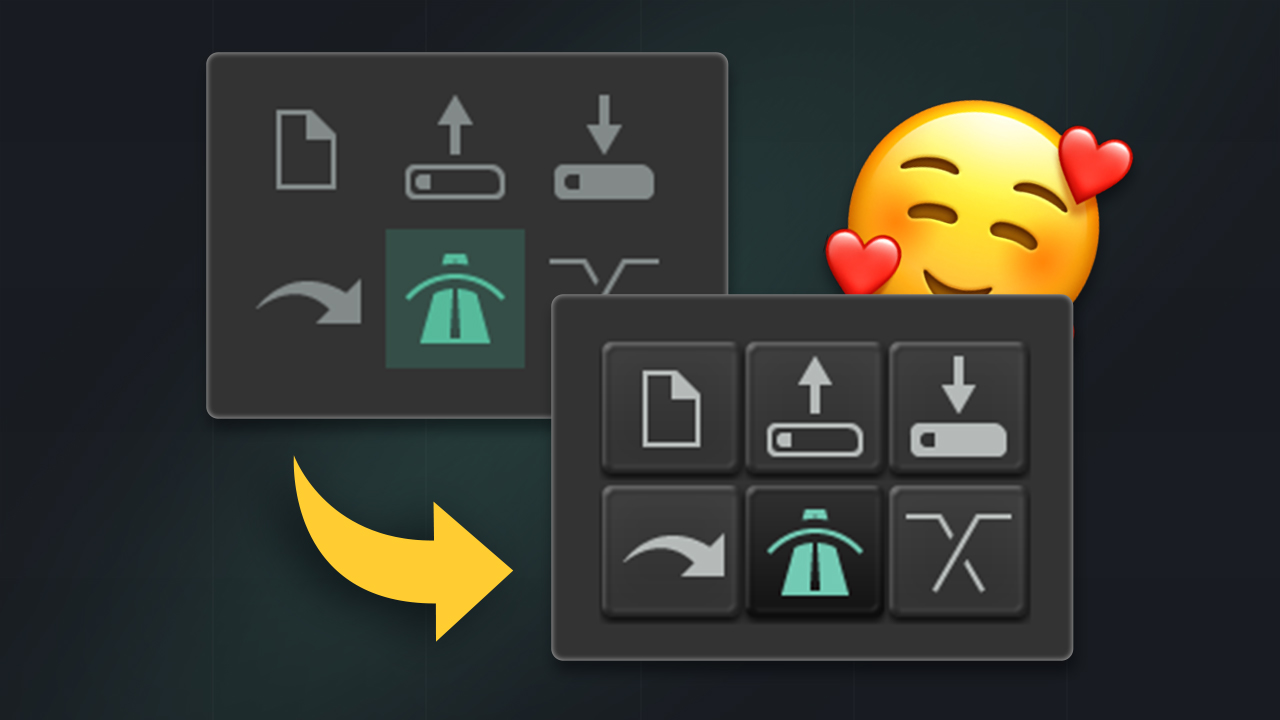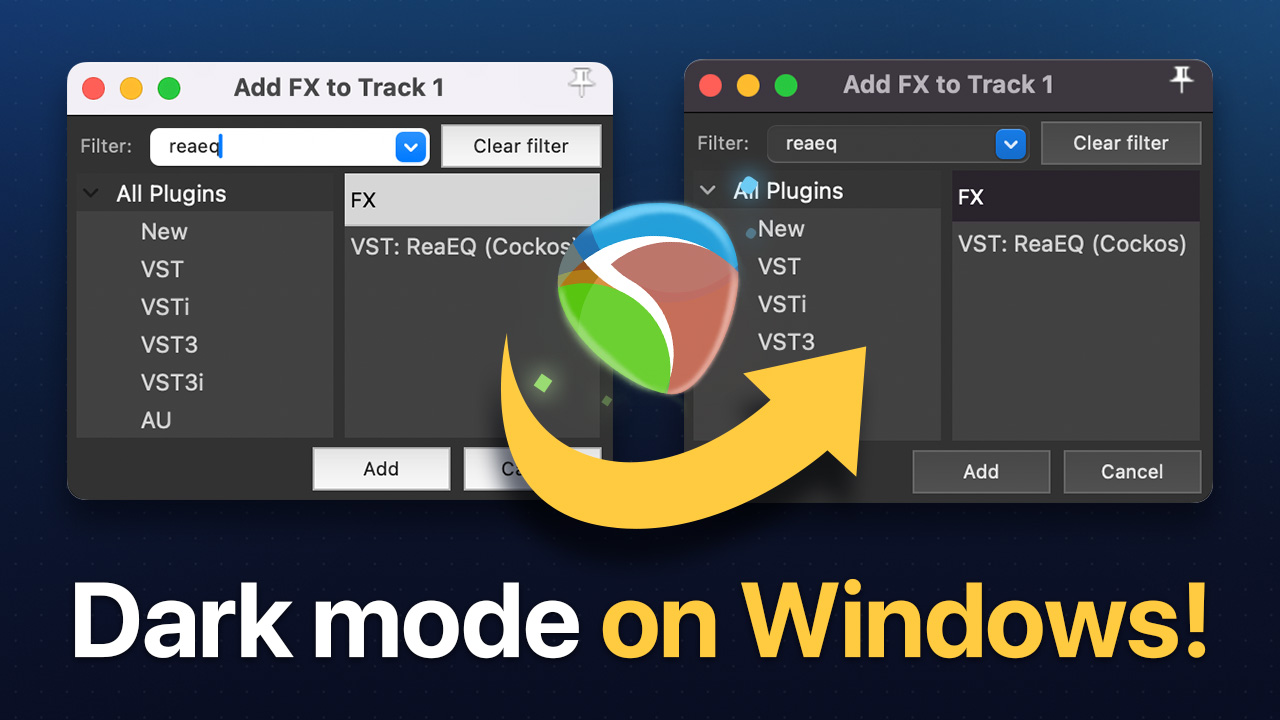
One question I get a lot is how to make the window borders and dialogs in REAPER match the dark theme instead of sticking out with that white system look that makes it look so jarring!
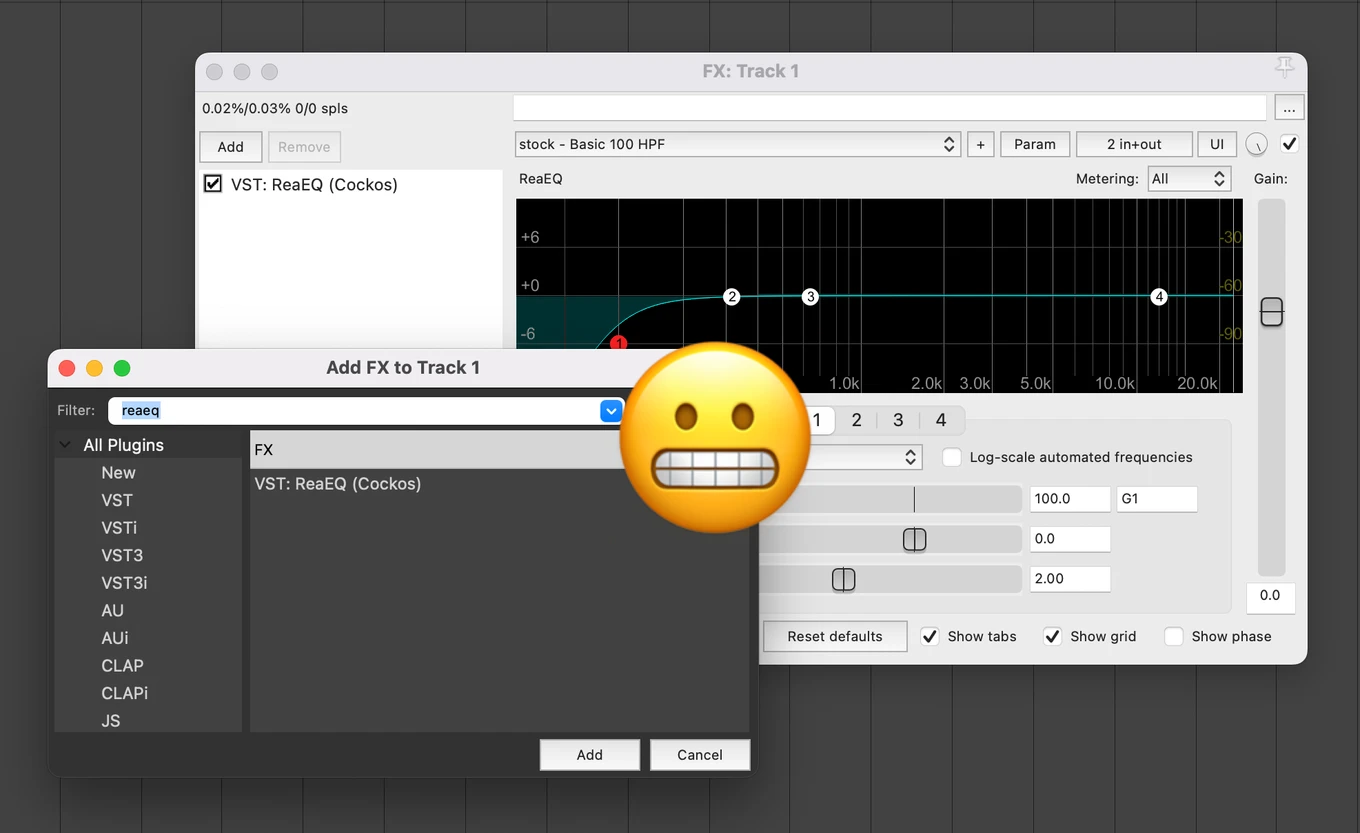
Now whether this is possible depends on your OS…
🍎 On macOS
This is easy to set up!
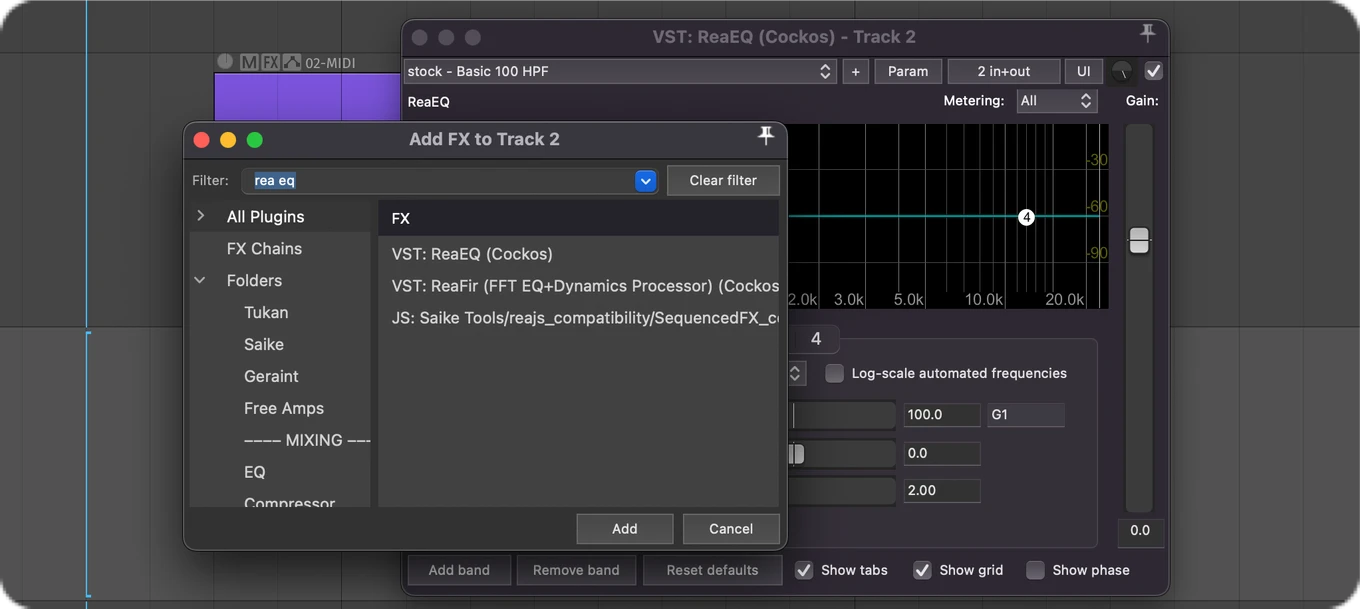
- Go to Options > Settings, then General > Advanced UI/system tweaks and enable "Allow 10.14+ dark mode if enabled (may cause display issues with some plug-ins)".
- Restart REAPER and everything will look much more cohesive with your dark theme!
🪟 On Windows
Unfortunately, this isn't natively supported in REAPER on Windows. The menus, dialogs, and window borders stay white no matter what theme you're using.
Howeeeeever, a genius person that goes by “RobKor77” created a super elegant solution! They recently created a plugin called ReaperDarkMode makes this possible.
How it works:
It's simply a .dll file you drop into your REAPER plugins folder, and it automatically applies dark styling every time REAPER launches. No further configuration needed 🤯
Here's what it darkens:
- Title bars and window borders
- The main menu bar
- Dialogs and popups
- List views, tree views, and tab controls
- Edit fields and other native controls
It also supports optional INI-based color customization if you want to tweak things further.
Installation steps
- Go to the ReaperDarkMode GitHub page and download the latest release
- Locate the ReaperDarkMode.dll file
- In REAPER, go to Options > Show REAPER resource path in explorer
- Open the UserPlugins folder inside that directory
- Copy ReaperDarkMode.dll into UserPlugins
- Restart REAPER
That's it. The plugin kicks in automatically on startup!
I haven't personally tested this one, but a lot of people seem to love it. Give it a try if the white borders are driving you crazy!
Hope it helps 💙